To customize music, sounds or images follow the instructions below.
Music
To play you own music in VV1, 2 or 3 you will need sound forge (the 30 day trial can be downloaded for free). Open My Computer/System C:/Program Files at this point you may need to select view hidden files/folders, search for your VV game (2 and 3 have their own folders, VV1 does not) open Sounds select song1, song2, song3 and song4, make copys of them onto your desktop or somewhere else. Open your music in sound forge then Save As... song1, song2, song3 or song4 .ogg coose to replace them. When you open VV you should hear your music playing
Sounds
To change sounds in VV do the same as above except do not save as song1, 2, 3 or 4! Also you probably wont want music to play when you pick up a villager!
Images
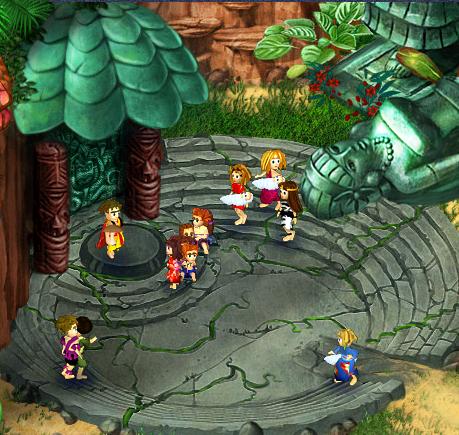
To change images in VV you will nedd Paint.Net this is important because most other programs make a huge white square behind what you edit. Open My Computer/System C:/Program Files at this point you may need to select view hidden files/folders, search for your VV game (2 and 3 have their own folders, VV1 does not) select Images choose the image to change then copy it incase you make a mistake! Then right-click and select edit if it does not open Paint.NET exit the program without saving anything and choose Paint.NET from the "Open with..." list. When you open it try not to edit too far away from the object of interest or it will not show up in the game. As an example I edited the clam in VV3 to look like this...
Attachments

_________________________
-Isola Villager


 Previous Topic
 Index
Index